
Menu Items
File
Edit
Reports
Marks
Help
Reports Menu
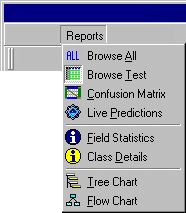
Reports... Browse All Data
- Browse through the entire database table used by this project.
- Right click on the column headers for Sort and Find.
Reports... Browse Test Data
- Only your test data set shows on this report.
- Browse throught the data rows you have selected for test set.
- Observe the actual versus predicted as you browse.
Reports... Confusion Matrix
- Only your test data set contributes to this report.
- This is a table showing every actual class and every predicted class.
- The number of actual items and predicted items is tabulated by class.
- The yellow diagonal indicates correct predictions.
- Click on any cell to browse the data that occurs in that cell.
Reports... Live Predictions
- Experiment with data values while observing the effect on the prediction.
- Only fields selected for inputs in Field Selection show on this screen.
- Fields that were not important enough to show up on the current tree are show as grayed.
Reports... Field Statistics
- View a statistical report for all fields in your entire database table.
- These statistics are collected only once during creation of a new project.
- These statistics are saved in your project.vrp file.
Reports... Class Details
- This screen shows all of the different classes that occur in any one field.
- Text fields that contain more than 256 different values are not useable by VisiRex.
- You have the option to treat numeric values as classes if the field contains less than 256 different numeric values.
Reports... Tree Chart
- The tree chart is one way to visually inspect the extracted rules.
- This view works best for very large trees having more than 200 to 300 nodes.
- Double click on any row of the tree chart and you will be delivered to a data browse showing all data passing through that node.
Reports... Flow Chart
- The flow chart is the best way to visually inspect the extracted rules for smaller trees.
- The flow chart may be color-coded to indictate data volume, prediction confidence, or most likely class.
- Double click on any node of the flow chart and you will be delivered to a data browse showing all data passing through that node.
- The flow chart view is not available when the tree width becomes excessive (approxmately 200 to 300 nodes). If you prune a large tree down to smaller size, you may return to flow chart view.